
You can check the most common questions regarding our HUE products.
We also have a Tutorials section with more information about popular topics. If your question is not answered below, please contact us for support.
To search the FAQs, please click here.
HUE Animation
FAQs: HUE Animation (General)
You may need to focus your HUE camera by turning the ring around the lens.
If this doesn’t help, the image on the right-hand side of your HUE Animation window can sometimes appear blurry because of a feature called onion-skinning. This is a tool to help animators to see their props as they were positioned in the previous frame, in order to align everything appropriately prior to capturing the next frame.
The afterimage of the previous frame is partially transparent to let you “see” both images at the same time.
The onion-skinning button is located just under the right-hand video window, close to the capture button. You can turn onion-skinning on and off and select a different onion-skinned frame by using the arrow control buttons nearby.
We always recommend updating to the latest version of the software wherever possible, to ensure the best compatibility with the latest versions of Windows and Mac OS X.
You can check which version of HUE Animation is installed on your computer by launching the software. Go into a project and select About HUE Animation from the HUE Animation menu at the top of the screen. The version number will be displayed at the top of the window which appears.
The version number is also displayed in the lower right corner of the project selection screen.
Note: Older versions of HUE Animation are called SAM Animation, and the corresponding menu option is About SAM Animation. There is no charge for upgrading from SAM Animation to HUE Animation.
The kit includes a perpetual single user license of Stop Motion Studio for HUE, which requires Windows 10 or later, or macOS 11+.
Alternative ‘HUE Animation’ software is available for older computers (see the system requirements for a full list of supported operating systems).
By default, HUE Animation saves your projects in a HUE Animation workspace folder, which is located in your Documents folder on a Mac or My Documents folder on a PC.
In older versions of the software this folder was called SAM Animation.
Click here for the full list of HUE Animation (General) FAQs
Stop Motion Studio
Click here for the full list of Stop Motion Studio FAQs
HUE Clay
HUE Cameras
Click here for the full list of HUE HD Camera FAQs
Click here for the full list of HUE HD Pro Camera FAQs
HUE Software
Click here for the full list of HUE Intuition FAQs
FAQs: myCreate for iOS
The HUE Animation and Stop Motion Studio software included in HUE Animation Studio only works on a Windows PC or Mac. Please check the System Requirements carefully when choosing your product.
As of iPadOS 17, Apple now supports USB cameras on iPads. If you have the iPad version of Stop Motion Studio (available separately) you will be able to use it with your HUE camera.
Using a HUE camera with Stop Motion Studio for iOS (separate purchase required)
If your camera isn’t initially available in the Stop Motion Studio software, please go to your iPad’s settings and into the Privacy & Security category. You may need to specifically give permission for Stop Motion Studio to access the ‘Camera’, as shown in the screenshot below.
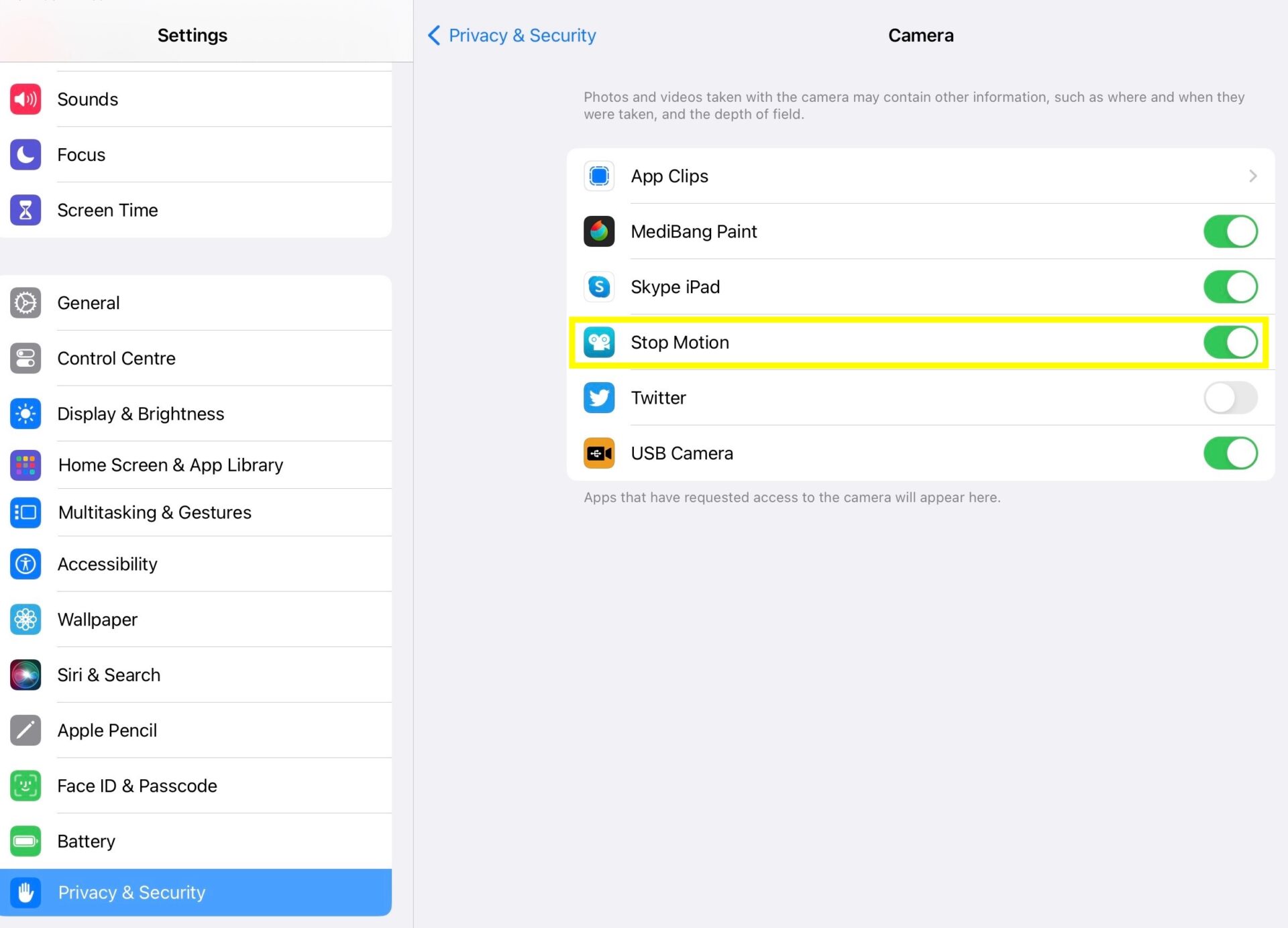
Once this has been done, the HUE camera should appear in the camera settings in Stop Motion Studio for iPad. The settings can be found near the bright red Record button, as highlighted in yellow below.
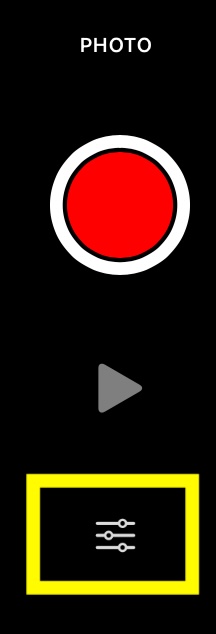
Selecting the HUE USB camera as your video device should immediately switch the live video displayed on the screen to HUE, rather than the built-in iPad camera.
Other
FAQs: The HUE Book of Animation
If you need to download the files from your HUE Animation CD on a computer with no CD drive, or if you have lost your CD, these extras are available to all HUE Animation owners through the Downloads page in their online account.
At the bottom of the Downloads page there will be a link to Other downloads which can be expanded to show the activity pack as shown.

If you need help accessing your account, please check this guide. If you don’t see any downloads available on the page you may still need to register your HUE Animation kit by activating your software.
Please contact us with your activation code and email address if you have any problems downloading your files.
Miscellaneous Questions
All HUE camera products include a three year manufacturer’s warranty against faults. Please register your HUE order here. Please note the warranty runs from your original purchase date. If you purchased through a reseller, please contact your place of purchase for any issues with the order or delivery in accordance with their terms and conditions. If your HUE product develops a fault and the place of purchase is unable to help, you can contact us for support.
If you purchased directly through our online store or from the official HUE store on Amazon, please check this separate FAQ for further assistance.