
You can check the most common questions regarding our HUE products.
We also have a Tutorials section with more information about popular topics. If your question is not answered below, please contact us for support.
To search the FAQs, please click here.
HUE Animation
FAQs: HUE Animation (General)
HUE Animation Studio now comes with Stop Motion Studio for Windows/macOS, which requires a HUE camera. Please ensure that you have given the software permission to connect to cameras in your computer’s Privacy/Security settings.
The following information only applies to the older ‘HUE Animation’ software.
HUE Animation only works with cameras without flash memory, so it’s not compatible with digital SLR (DSLR) cameras, camcorders which store videos internally, or flip cameras.
HUE Animation is designed to work with webcams and some document cameras with a USB connection. These cameras are capable of real time video streaming. If you are testing a camera on your computer, make sure that your computer has the correct driver software to run the camera.
We recommend using ‘plug and play’ webcams as these will not require any additional driver installation.
Click here for the full list of HUE Animation (General) FAQs
Stop Motion Studio
FAQs: Stop Motion Studio
The Stop Motion Studio software included in HUE Animation Studio has been translated into US English, Czech, Danish, Dutch, French, German, Italian, Japanese, Korean, Polish, Portuguese (Portugal), Russian, Simplified Chinese, Spanish (Spain), Swedish, Turkish and Ukrainian. If your computer is set to use one of these supported languages, Stop Motion Studio will be fully localized.
HUE Animation Studio now comes with Stop Motion Studio for Windows/macOS, which requires a HUE camera. Please ensure that you have given the software permission to connect to cameras in your computer’s Privacy/Security settings.
The following information only applies to the older ‘HUE Animation’ software.
HUE Animation only works with cameras without flash memory, so it’s not compatible with digital SLR (DSLR) cameras, camcorders which store videos internally, or flip cameras.
HUE Animation is designed to work with webcams and some document cameras with a USB connection. These cameras are capable of real time video streaming. If you are testing a camera on your computer, make sure that your computer has the correct driver software to run the camera.
We recommend using ‘plug and play’ webcams as these will not require any additional driver installation.
Stop Motion Studio system requirements:
- 512MB RAM (1GB recommended)
- Windows 10 or later, or macOS 11+
If your system is not compatible with Stop Motion Studio, you might be able to use HUE Animation software instead.
HUE Animation system requirements:
- PC: Windows 11, 10, 8, 7 or XP and graphics drivers with OpenGL 2.0 support
- Mac: OS X 10.5 (Leopard) to macOS 10.14 (Mojave) * Please note that the HUE Animation software is not compatible with macOS 10.15 (Catalina) or later.
- 512MB RAM (1GB recommended)

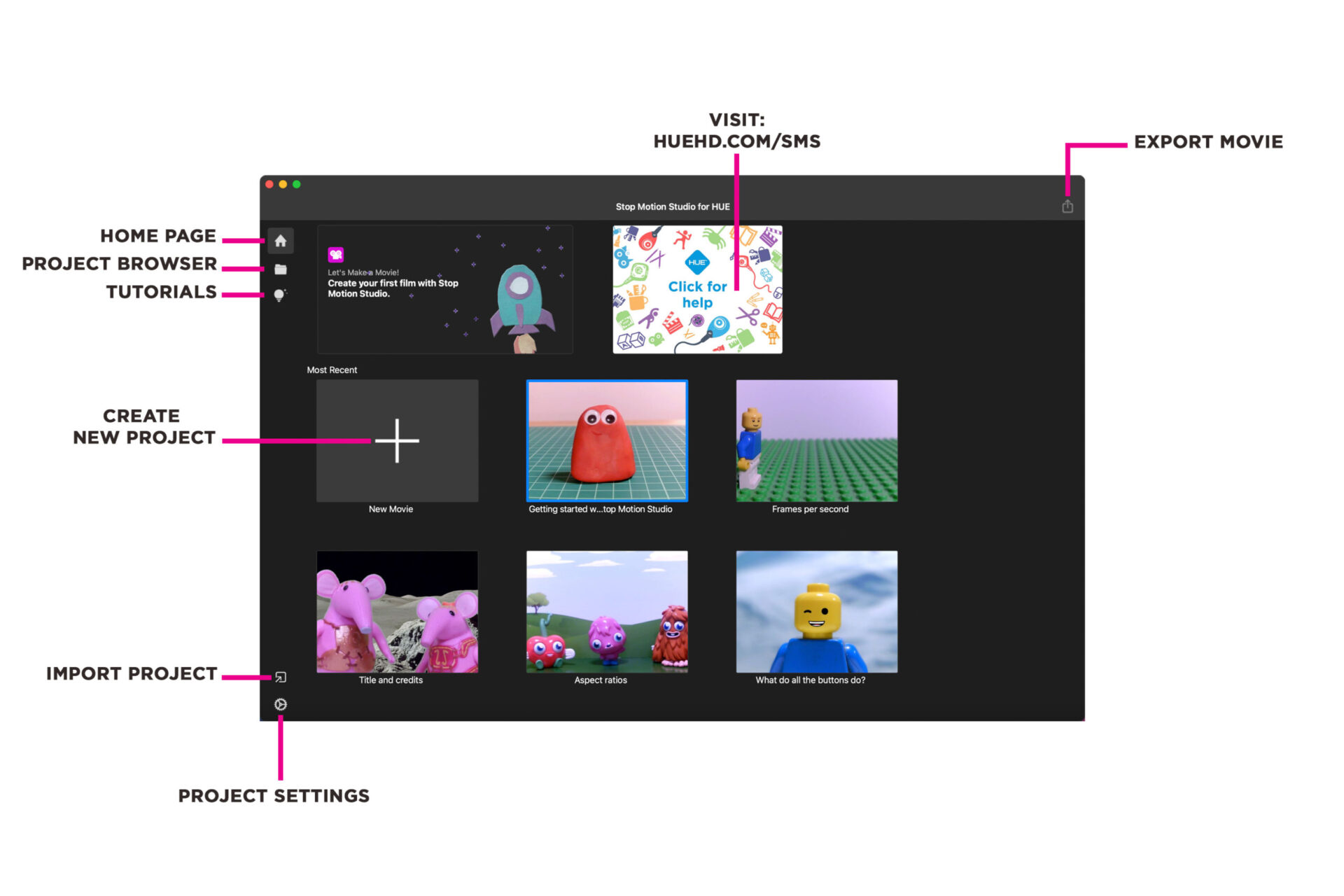
The Stop Motion Studio app HOME PAGE is where you can start a new project, access tutorials and import and export projects.
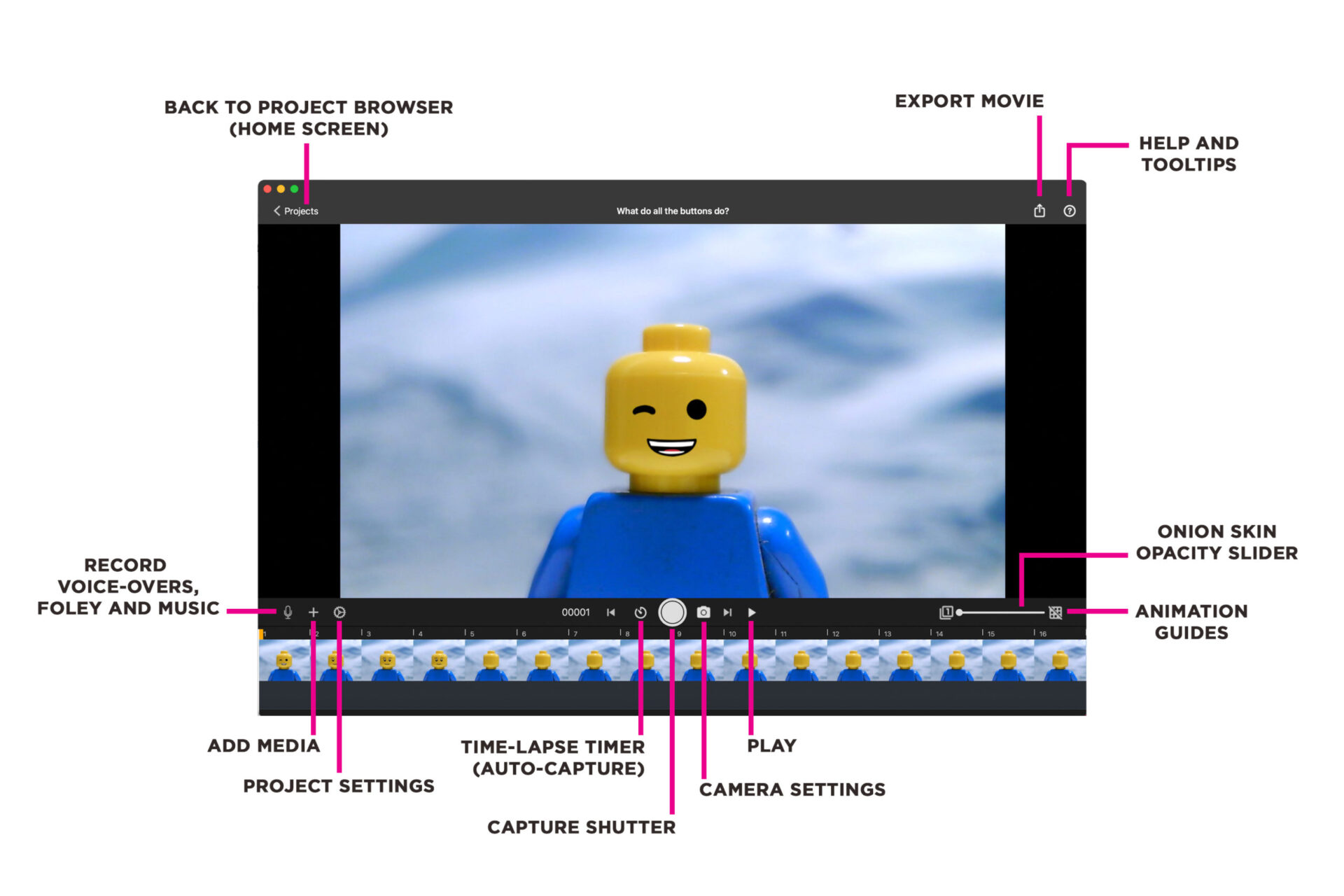
In the PROJECT TIMELINE window, you can access camera and project settings, add media and audio, capture frames, preview your animation and export your movie.
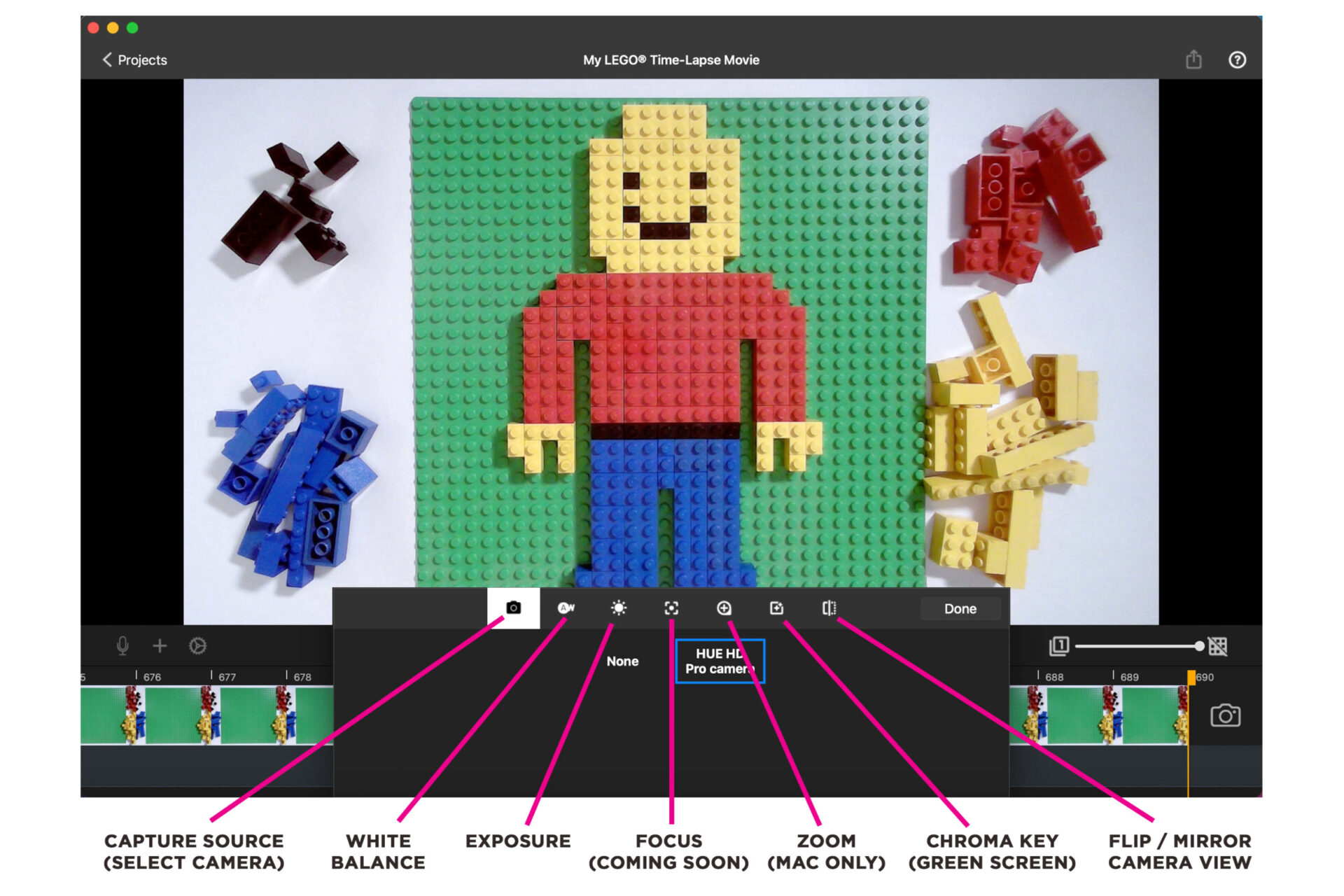
In the CAMERA SETTINGS menu you can select your camera (capture source), make adjustments to the white balance, exposure and orientation of your scene, and access the chroma key (green screen) feature.
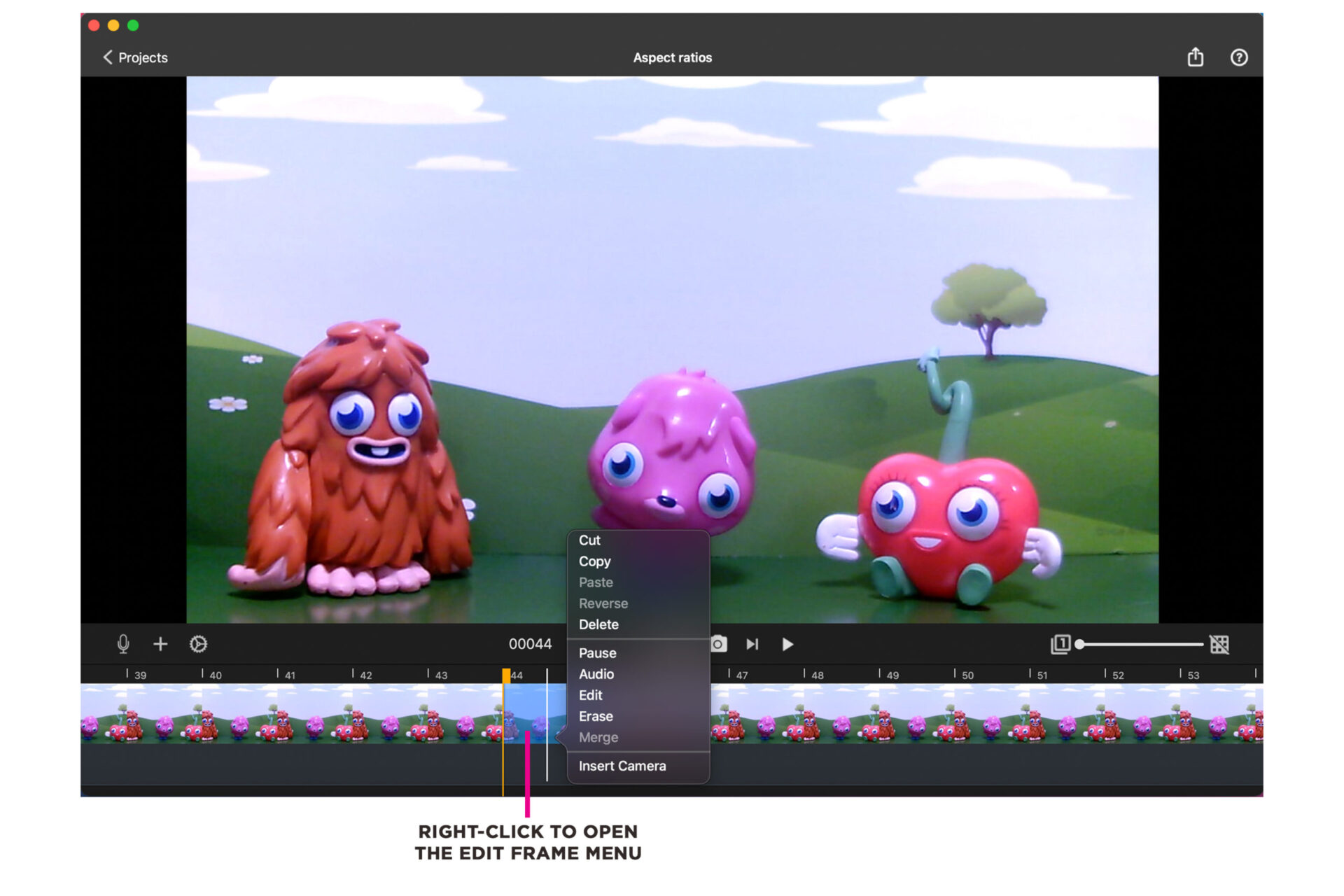
To view the EDIT FRAME menu, right-click on a frame (or multiple frames) in your animation timeline.
In the menu you have options to cut, copy, paste, reverse, delete and pause the duration of the selected frame/s.
Additionally there are options to add audio, edit the frame with drawings, text or shapes, erase drawings, and merge multiple frames.
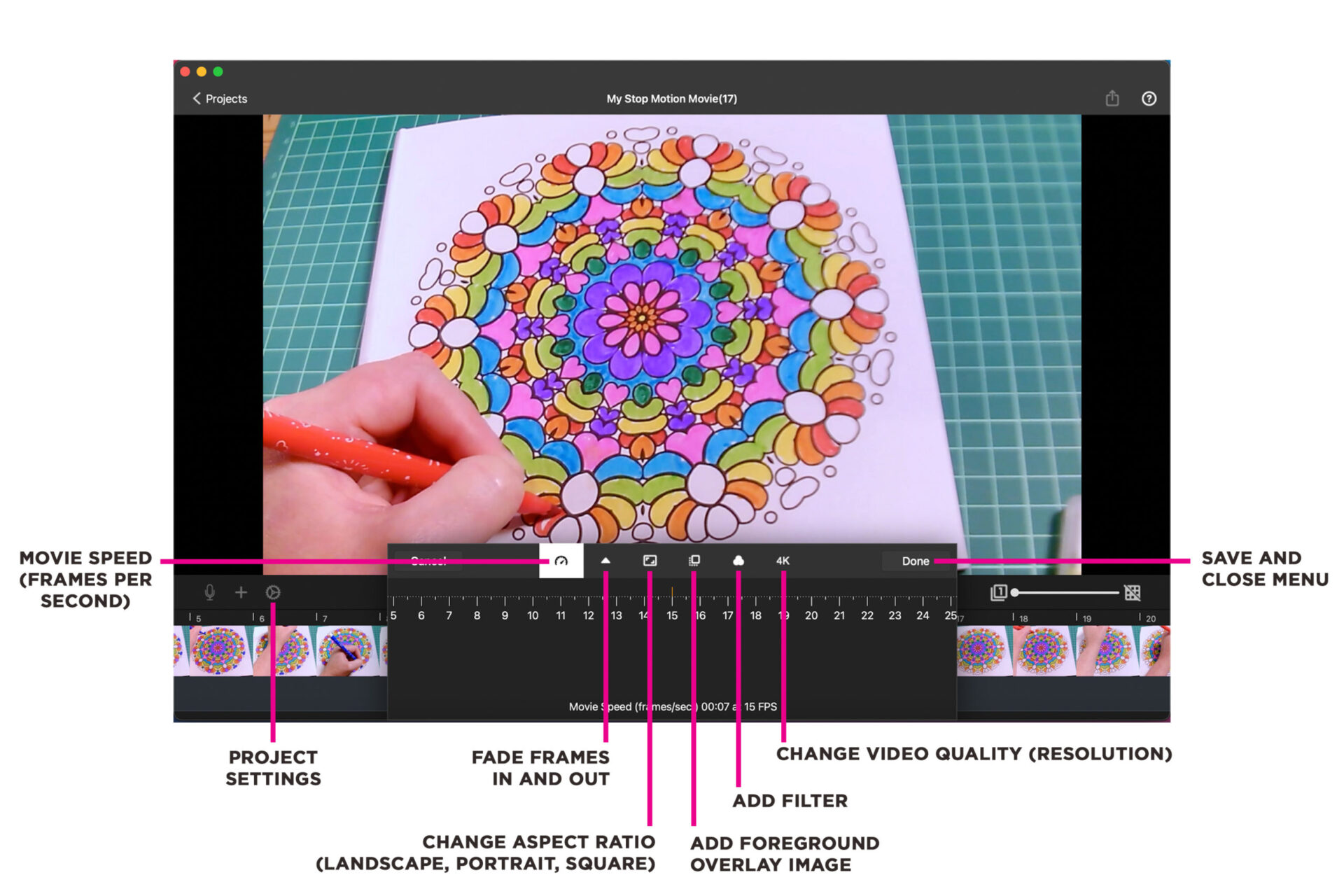
Click the small cog wheel icon to open the PROJECT SETTINGS menu.
Here you will find options to:
- Change the speed of your movie by adjusting the frames per second (fps).
- Fade your movie in or out with a black video overlay.
- Change the aspect ratio of your movie to landscape, portrait or square.
- Add a foreground image over your animation.
- Add a filter effect such as black & white, neon, mirrored and pixelated.
- Change the video quality/resolution of your animation (allowed by the camera you are using).
Click here for the full list of Stop Motion Studio FAQs
HUE Clay
HUE Cameras
Click here for the full list of HUE HD Camera FAQs
Click here for the full list of HUE HD Pro Camera FAQs
HUE Software
Click here for the full list of HUE Intuition FAQs