
You can check the most common questions regarding our HUE products.
We also have a Tutorials section with more information about popular topics. If your question is not answered below, please contact us for support.
To search the FAQs, please click here.
HUE Animation
Click here for the full list of HUE Animation (General) FAQs
FAQs: HUE Animation (Mac OS)
FAQs: HUE Animation (Windows)
On some systems, using a Microsoft OneDrive folder for your Workspace (HUE Animation) or default save/temporary video location (HUE Intution) can have unpredictable results. For the best performance we recommend using a local drive on your computer and copying files to your OneDrive as part of your backup routine.
You can change your default save locations using these instructions for HUE Animation, or in the Settings tab for HUE Intuition.
Stop Motion Studio
Click here for the full list of Stop Motion Studio FAQs
HUE Clay
HUE Cameras
Click here for the full list of HUE HD Camera FAQs
FAQs: HUE HD Camera (Windows)
If you notice a whistling noise in the background of your recordings in HUE Intuition and other apps, you may need to adjust your Windows sound settings to optimize them for your microphone.
If you open your Windows Control Panel and select Sound, then the Recording tab, you will be able to select the Properties of your USB microphone. The Advanced tab will allow you to adjust the default format for microphone recordings. Adjusting this setting should allow you to eliminate any background sounds. If you are hearing a whistling sound, choosing Radio quality/Tape recorder from the dropdown menu should eliminate the problem.
The same steps apply when using any other USB microphones which exhibit a similar problem.
An update to Windows 10 released in April 2018 added new Privacy options to the computer’s system Settings. If these are configured incorrectly it is possible that they will block any applications from accessing cameras. Both internal webcams and USB cameras such as HUE are affected by these settings. If you updated from an earlier version of Windows 10, you may have been asked to choose your settings immediately after the update was installed. It is important that these settings allow camera and microphone access, otherwise the software will be unable to connect to the camera and microphone.
If you want to unblock the camera, press the Start button and open the Settings screen, or alternatively press Windows Key + I. You will see an option called Privacy in the list.
There will be sections on this page for your Camera and Microphone settings. Please ensure that the applications you want to use with your HUE have full access to both the camera and the microphone.
You may need to switch on the option to Allow apps to access your camera before the individual applications appear in the list.
For Microsoft’s help page about the new camera settings, please click here. You can learn more about their privacy settings in this Microsoft FAQ. This information also applies to Windows 11.
Another common cause of video not appearing in this way is third party security software. This separate FAQ includes advice if you believe that this may be the problem.
Click here for the full list of HUE HD Pro Camera FAQs
HUE Software
FAQs: HUE Intuition
As well as the options in the Settings tab, HUE Intuition 2.0 now saves some additional configuration options between launches to make it easier to use than ever before. The new saved settings are:
- Camera selection
- Microphone selection
- Microphone volume
- Flip/Mirror settings
- Scan mode: ‘Autosave’ location
- Document Camera mode: Tool/Fill/Color settings
- Image Capture mode: Duration/Interval/Mode/Privacy settings
Windows users can delete their saved settings by removing the Users\[your username]\AppData\Local\hue directory.
On macOS, the saved settings are stored in your ~Library/Preferences/com.bkl.HUE-Intuition.plist file.
At this time, we only support HUE branded cameras such as the HUE HD Pro. Other cameras may work but we cannot guarantee compatibility.
The error message may start with “System.Net.WebException: The underlying connection was closed: An unexpected error occurred on a send. —> System.IO.IOException: Unable to read data from the transport connection: An existing connection was forcibly closed by the remote host.”
We recommend updating to HUE Intuition version 1.7.2.0 (or later) if you are seeing this error message.
If there are network problems which prevent you from activating within the software, you may need to activate through our website instead.
Step 1. Click the link to your online account, which can be found in the corner of our website.

Step 2. If you don’t already have a HUE account, enter your email address and choose a password to create one.
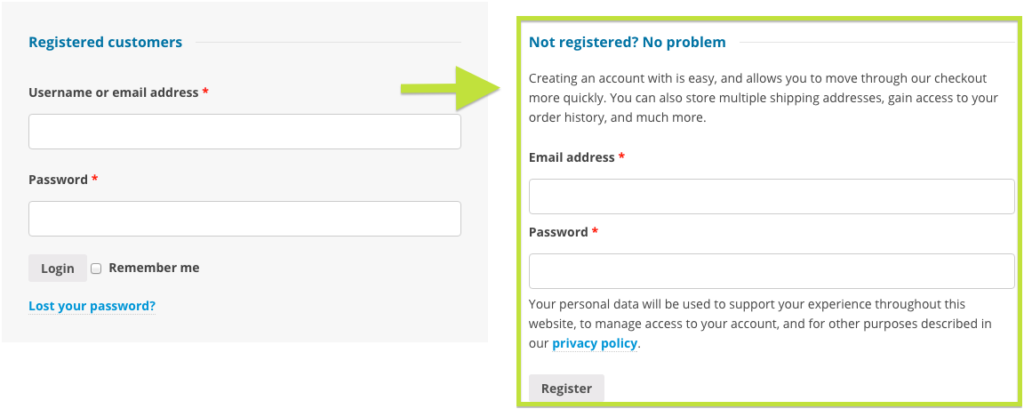
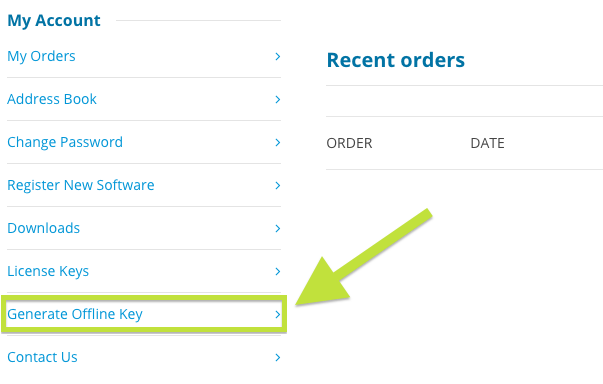
Step 3. Once you have logged in, click on Register New Software.
Step 4. Enter your activation code, which can be found on the back cover of The HUE Book of Animation or on the back of the HUE HD Pro pamphlet, in the box provided.
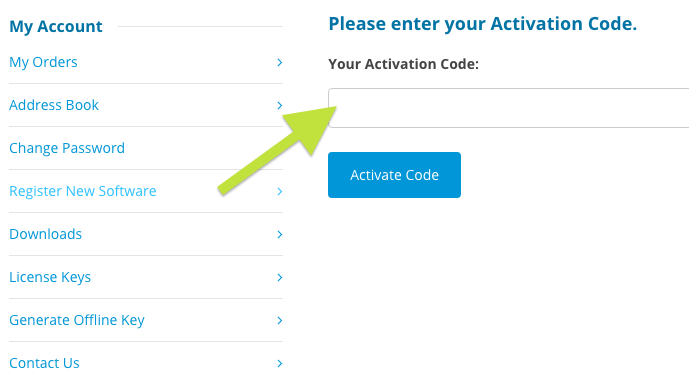
This will permanently add your software downloads and license key to your online account.
Please note that this method will not work with the older 8-digit HUE _ _ _ _ _ codes for HUE Animation. If you have an older code, Register it first then copy the details into our Offline Key form to instantly generate the keys you need.
The full text of the message will be “ERROR The resource could not be loaded because the App Transport Security policy requires the use of a secure connection.”
This alert is caused by intermittent difficulties maintaining a connection to our activation server if you are using an older version of HUE Intuition. It only affects users running macOS/Mac OS X 10.11 (El Capitan) or later.
What you need to do is to ignore the top half of the activation screen and complete the bottom instead, inputting your email address, license key and offline activation key. If you don’t have these details yet because the code has never been registered, there is a help page here with instructions.
If you’re running Mac OS X 10.11 or later (or macOS), please update to the latest version of HUE Intuition here to permanently solve the problem.
The Skype™ button is no longer part of HUE Intuition version 2.0 and later. Older versions of the software included the feature as described below. While there are no plans for the button to return, all HUE cameras are still compatible with Skype™.
Clicking the Skype™ button in HUE Intuition will automatically disconnect your HUE’s video stream and launch Skype™. The camera’s stream will only work in one application at a time.
To make video calls on Skype™, open the Tools menu and pick Options, then go to the Video settings. The HUE camera should be selected and showing a preview of your video as below.

The Audio settings tab lets you check that HUE’s USB microphone is selected.

On a Mac, the settings are in Preferences then the Audio/Video tab.

Note: If Skype™ isn’t installed on your computer, you’ll be taken to the Skype™ website in order to download and install the software. Using Skype™ for computer-to-computer video calls requires setting up a free Skype™ account.
Click here for the full list of HUE Intuition FAQs